Models
The Models page is where operators create and manage concrete provider-backed deployments.
Each deployment defines:
- the public model name clients will call
- the provider identity used for routing visibility, spend reports, callbacks, and dashboards
- the upstream provider model ID
- credentials and connection details, either inline or through a shared named credential
- the workload type, such as chat or embeddings
- optional pricing and default request parameters
Quick Success Workflow
- Open AI Gateway > Models
- Add one deployment for a model you already have provider access to
- Confirm the deployment becomes healthy
- Verify the model appears in
GET /v1/models - Send a test proxy request
What You Manage Here
model_name: the public name clients usedeployment_id: the stable internal identifier for this deployment- provider settings in
deltallm_params - workload mode in
model_info.mode - access groups in
model_info.access_groups - pricing metadata for spend tracking
- default request parameters
Recommended First Deployment
For a simple first deployment:
- Set
model_nameto the public name you want clients to use - Choose the provider
- Set
deltallm_params.modelto the upstream model ID - Add the provider API key inline, or select a shared named credential
- Keep the default mode as
chatunless this is an embeddings, image, audio, or rerank model
If you do not set a deployment_id, DeltaLLM creates one automatically.
ElevenLabs Audio Deployments
ElevenLabs deployments use the same public DeltaLLM audio routes as other providers, but DeltaLLM calls the native ElevenLabs upstream APIs behind the scenes.
For shared credentials and key rotation, create an ElevenLabs Named Credential with provider elevenlabs, the ElevenLabs API key, and the default API base https://api.elevenlabs.io/v1. Inline credentials also work for deployment-specific keys.
Text-to-Speech
- Open AI Gateway > Models
- Choose Text-to-Speech
- Set the public model name, for example
elevenlabs-tts - Choose provider ElevenLabs
- Set provider model to
eleven_multilingual_v2,eleven_v3, or another ElevenLabs TTS model - Select the ElevenLabs named credential, or choose Inline Credentials and enter the API key and API base
- Add default parameter
voice_idwhen clients will not send avoicevalue - Optionally add default parameter
output_format, for examplemp3_44100_128 - Save the deployment
If the public request includes voice, that value is used as the ElevenLabs voice ID. If the public request omits voice, DeltaLLM uses model_info.default_params.voice_id. A TTS deployment without either value returns a request error instead of making an upstream call.
Speech-to-Text
- Open AI Gateway > Models
- Choose Speech-to-Text
- Set the public model name, for example
elevenlabs-stt - Choose provider ElevenLabs
- Set provider model to
scribe_v2orscribe_v1 - Select the ElevenLabs named credential, or choose Inline Credentials and enter the API key and API base
- Optionally add safe default parameters such as
language_code,timestamps_granularity,diarize,num_speakers, ortag_audio_events - Save the deployment
DeltaLLM maps public transcription fields such as language and temperature to the native ElevenLabs multipart fields. It does not send OpenAI-only fields such as prompt or response_format upstream to ElevenLabs.
ElevenLabs Default Parameters
| Key | Mode | Use |
|---|---|---|
voice_id |
TTS | Fallback voice ID when the public request omits voice |
output_format |
TTS | Native ElevenLabs output format such as mp3_44100_128 |
language_code |
STT | Default transcription language when the public request omits language |
timestamps_granularity |
STT | Word or character timestamp granularity, when supported by the upstream model |
diarize |
STT | Enables speaker diarization |
num_speakers |
STT | Expected number of speakers for diarization |
tag_audio_events |
STT | Controls audio-event tags in transcription results |
Troubleshooting
- Missing voice ID: add
model_info.default_params.voice_idor require clients to sendvoice - Auth failures: verify the named credential has
provider: elevenlabs, a validapi_key, and no custom OpenAI auth fields - Output format errors: use public
response_formatvalues such asmp3,opus,wav, orpcm, or configure a valid ElevenLabsoutput_formatdefault - STT duration billing: DeltaLLM derives billable duration from ElevenLabs timing metadata, then applies
input_cost_per_secondwhen configured
Chat Batch Execution
For chat deployments, the model form includes Batch Execution controls in the Chat Settings section.
Most deployments should use the default behavior and leave numeric fields blank. Only set explicit limits when you know the provider or serving cluster capacity you want DeltaLLM to reserve for batch work.
| Option | Stored as | What it does | Recommendation |
|---|---|---|---|
| Mode: Default concurrent | No deltallm_params.chat_batching override |
Sends one ordinary upstream request per batch item, bounded by the worker defaults. | Use this for most chat deployments, including vLLM and OpenAI-compatible providers with their own serving-side batching. |
| Mode: Concurrent | deltallm_params.chat_batching.mode: concurrent |
Keeps one upstream request per batch item, but persists deployment-specific chat batching settings such as Max In-Flight. | Use when this deployment needs a tighter or higher per-worker cap than the global worker setting. |
| Mode: Sync microbatch | deltallm_params.chat_batching.mode: sync_microbatch |
Groups compatible chat items into one synchronous upstream provider call when a matching executor is available. | Use only for provider adapters that are proven to return one result and exact usage per input item. Start with small batches such as 4 or 8. |
| Mode: Disabled | deltallm_params.chat_batching.mode: disabled |
Prevents chat microbatch grouping for this deployment. | Use for providers or models where batch behavior is unknown, unsafe, or hard to bill correctly. |
| Max In-Flight | deltallm_params.chat_batching.max_in_flight |
Limits concurrent upstream chat requests for this deployment per worker replica. | Leave blank unless you need an explicit cap. Size it against provider limits, worker replica count, and serving capacity. |
| Upstream Max Size | deltallm_params.chat_batching.upstream_max_batch_size |
Maximum number of chat items in one sync microbatch. Required for Sync microbatch and must be at least 2. |
Set only with Sync microbatch. Start at 4 or 8, then increase only after latency, response shape, and usage accounting look correct. |
| Max Total Input Tokens | deltallm_params.chat_batching.max_total_input_tokens |
Caps the combined input tokens in a sync microbatch chunk. | Set a conservative cap for sync microbatch providers so one large group does not exceed context or latency limits. Leave blank for concurrent modes. |
| Scheduler Max In-Flight | model_info.batch_capacity.max_in_flight |
Sets the batch scheduler capacity slots this model group can have in flight. This is separate from live request routing. | Leave blank to use scheduler defaults or inferred capacity. Set it when a model group needs a hard batch-specific cap. |
| Scheduler Max Claim Work Units | model_info.batch_capacity.max_claim_work_units |
Caps how much work the scheduler may claim for this model group at once. | Leave blank initially. Lower it when large jobs monopolize workers; raise it only after the model drains backlog without hurting latency. |
| Capacity Fraction | model_info.batch_capacity.capacity_fraction |
Fraction of router max_in_flight to use when scheduler capacity is inferred from chat batching limits. Must be greater than 0 and no more than 1. |
Leave blank unless you are sharing the deployment between live traffic and batch work. Use a conservative value such as 0.25 for shared capacity; reserve 1 for batch-dedicated capacity. |
Blank numeric fields are treated as unset. For example, leaving Max
In-Flight empty does not send 0; it leaves that limit to the worker default.
When Mode is Default concurrent and all chat batching numeric fields are
empty, the UI clears any stored deltallm_params.chat_batching override. If
Max In-Flight is set while Mode remains Default concurrent, the UI saves
an explicit mode: concurrent override with that limit. Disabled ignores
numeric batching fields. If Sync microbatch is selected, Upstream Max
Size is required and must be at least 2.
Access Groups
The model form includes an Access Groups field for authorization grouping. Enter group keys such as beta or support when scopes should be able to grant access to a set of callable targets instead of selecting each model separately.
Access groups are attached to the public model name, not a single provider deployment. If several deployments share the same model_name, keep their access group lists identical so group expansion remains deterministic.
Do not use access groups for routing. Deployment tags remain routing metadata and can be matched by request metadata.tags; tags do not make a model visible to an organization, team, key, or user.
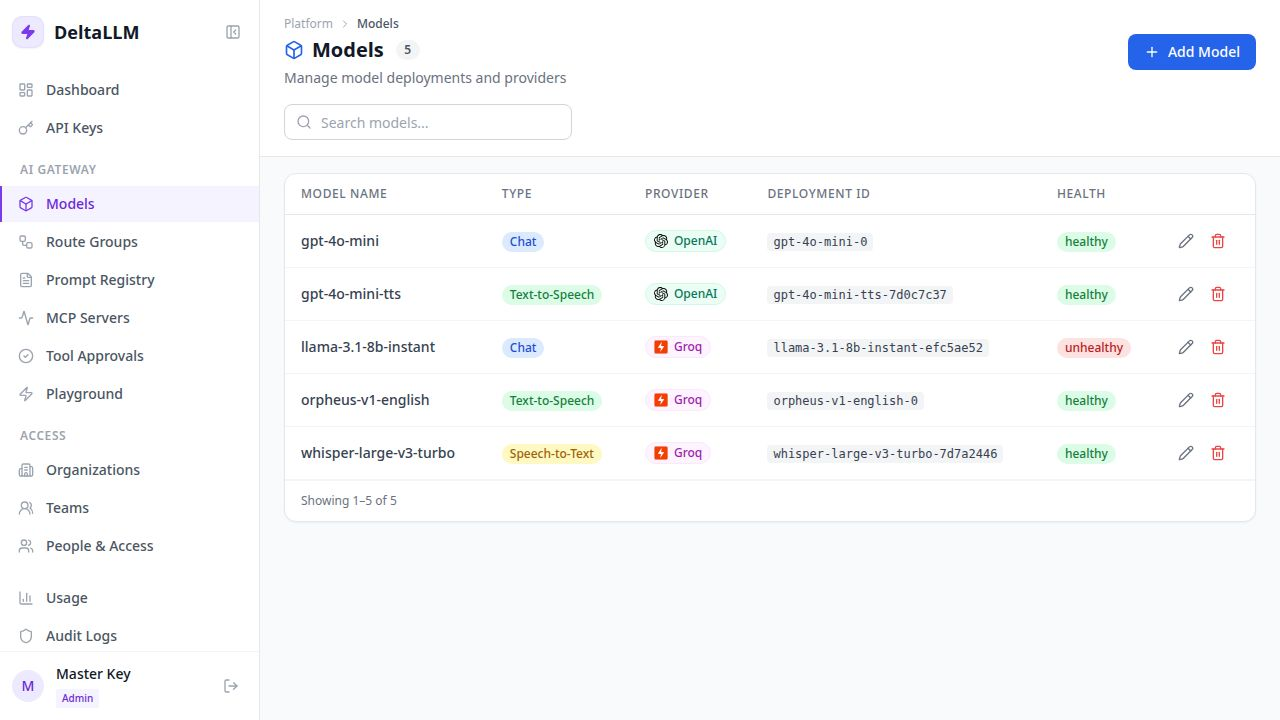
What the Table Tells You
- Model Name: the public runtime model name
- Provider: explicit deployment provider such as OpenAI or Groq
- Type: runtime mode such as
chatorembedding - Deployment ID: the internal ID used by route groups and policies
- Health: whether the runtime currently sees the deployment as healthy
When You Need Route Groups
You do not need a route group for a single deployment.
Create a route group when:
- you want multiple deployments behind one logical target
- you want explicit routing policy
- you want controlled failover behavior
- you want to bind prompt behavior at the route-group level
Custom Upstream Auth Headers
For these OpenAI-compatible providers, the model form supports inline upstream auth-header overrides:
openaiopenroutergroqtogetherfireworksdeepinfraperplexityvllmlmstudioollama
In the model form:
- Choose Inline credentials
- Enter
api_keyand anyapi_base - Expand the provider connection fields
- Fill
Auth Header NameandAuth Header Formatif the upstream does not acceptAuthorization: Bearer ...
Example inline deployment payload:
{
  "model_name": "support-vllm",
  "deltallm_params": {
    "provider": "vllm",
    "model": "vllm/meta-llama/Llama-3.1-8B-Instruct",
    "api_key": "gateway-key",
    "api_base": "https://vllm.example/v1",
    "auth_header_name": "X-API-Key",
    "auth_header_format": "{api_key}"
  },
  "model_info": {
    "mode": "chat"
  }
}
For shared gateway credentials, Named Credentials remain the recommended workflow. If a deployment references a named credential and also carries overlapping connection fields locally, the named credential values win.
Operational Notes
- DeltaLLM validates provider and mode compatibility when you create or update a deployment
- The explicit provider is the source of truth for dashboards, spend reports, callbacks, and metrics
- Shared provider credentials are best managed through Named Credentials
- Creating, updating, and deleting deployments requires admin access
- Readable deployment IDs make later route-group work easier
- Visibility to organizations, teams, keys, and users is governed through callable-target bindings, access-group bindings, and scope policies