API Keys
The API Keys page is where operators issue credentials for applications, teams, and controlled integrations.
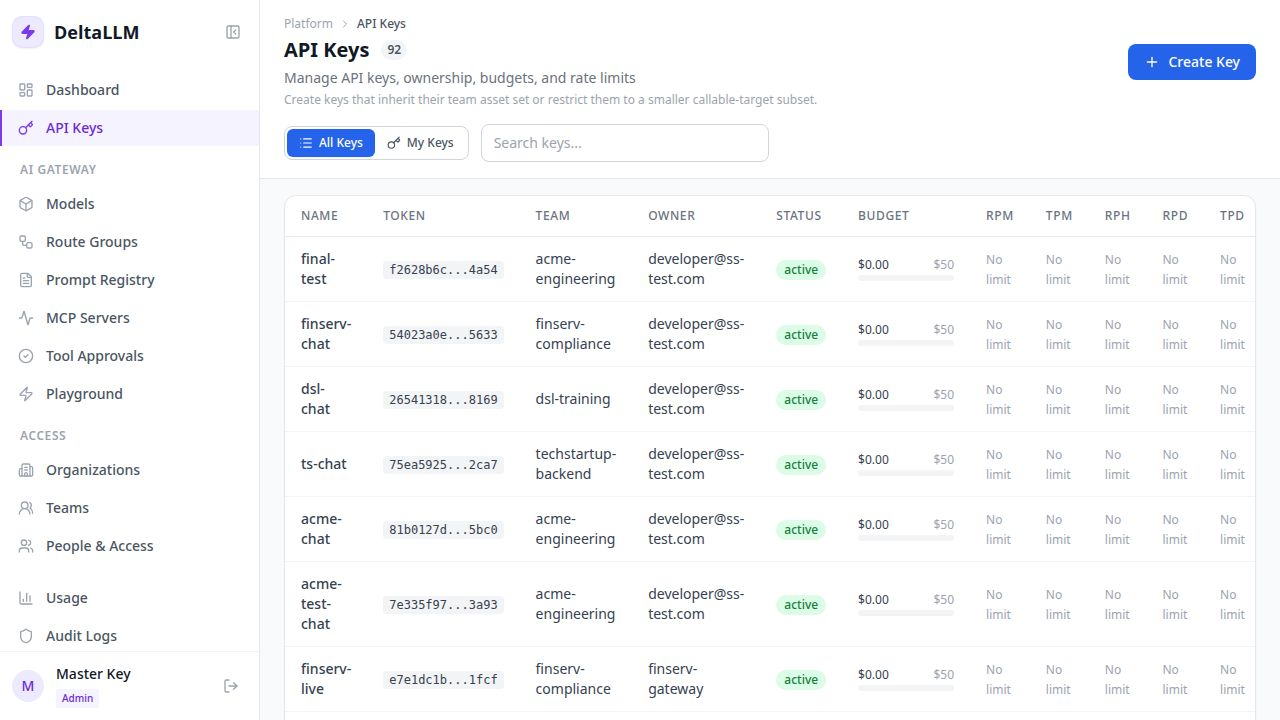
What this page is for
- Create a new key for a team-owned application or integration
- Apply budgets and rate limits across multiple time windows (per-minute, per-hour, per-day)
- Regenerate or revoke keys without changing the integration pattern
- Review ownership and key-level scope context
- Allow team developers to create and manage their own keys via self-service
Quick steps
- Select the team that should own the key.
- Choose who owns it in the admin UI:
Youfor a human-owned key, orService accountfor automation. - If you need a new service account, create it directly from the same dialog after selecting a team.
- Set optional limits such as budget, RPM, TPM, RPH, RPD, or TPD.
- Choose whether the key inherits the team asset set or narrows it to selected targets or access groups.
- Create the key and copy the raw secret immediately. It is only shown once.
Self-Service Key Creation
Team developers with the key.create_self permission can create their own API keys without involving an admin. The page shows two tabs when self-service is available:
- All Keys — visible to admins, showing every key in scope
- My Keys — shows only keys owned by the current user
How it works
- An admin leaves self-service enabled on the team or enables it later in team settings (see Teams)
- A team developer signs in and navigates to API Keys
- The simplified creation form shows policy constraints (max budget, required expiry, etc.)
- The developer creates a key — the backend forces the owner to the current session user
- The developer can regenerate, revoke, or delete their own keys
Policy constraints enforced by the backend
| Constraint | Effect |
|---|---|
| Self-service disabled on team | Creation blocked with 403 |
| Max keys per user reached | Creation blocked with 403 |
| Budget exceeds team ceiling | Creation blocked |
| Missing expiry when team requires it | Creation blocked |
| Expiry exceeds team max expiry days | Creation blocked |
| Rate limits exceed team limits | Creation blocked |
Self-service users cannot see or manage keys owned by other users through the My Keys view.
Key fields
- Key name: human-readable label shown in the table
- Team: required ownership boundary for spend, permissions, and reporting
- Owned by: who the key belongs to in the admin UI
- Max budget: hard spend ceiling for that key
- RPM / TPM: request and token throttles per minute
- RPH: request throttle per hour
- RPD / TPD: request and token throttles per day
Key Asset Access
Keys normally inherit the callable-target universe from their team. Use key-level restriction when an integration needs a smaller model set than the team owns.
In restrict mode, a key can select direct callable targets and access groups that are already visible through the team. Selecting an access group grants the key the callable targets currently in that group, and future matching targets after runtime reload, as long as the team and organization also allow them.
Self-service keys follow the team's self-service policy and ownership rules. They still inherit the team asset boundary; admins can use the full key editor when a production integration needs explicit key-level narrowing.
For self-registered sandbox users, the default team policy is the main guardrail for personal key creation. The key must stay within the sandbox team, the current user becomes the owner, and the requested key budget, expiry, and rate limits must satisfy the team's self-service policy. Runtime requests still pass through the normal organization, team, runtime user, and key-level budget and rate-limit checks.
Important behavior
- The raw key is shown once at creation time
- The table keeps the hashed token, owner, status, and budget progress
- Scoped access still applies: org users only see keys inside their organizations
- Service accounts are non-login owners for shared services, jobs, or automations
- Keys no longer carry model allowlists on the key record. The create/edit dialog writes callable-target bindings, access-group bindings, and scope policies so a key can inherit its team asset set or narrow it further.
- When rate limits are updated via the admin API or UI, the key validation cache is automatically invalidated so new limits take effect immediately